Showing posts with label Laptop. Show all posts

Friday, 12 March 2021

How To Split A Laptop Or PC Screen In Windows 10

 Nowadays, many people use two monitors while using a computer to perform tasks more

efficiently. And the same thing you get when you use split-screen features on your PC. On
split-screen mode, your computer screen gets divided into two halves and makes you feel like you are using two different monitors simultaneously. 
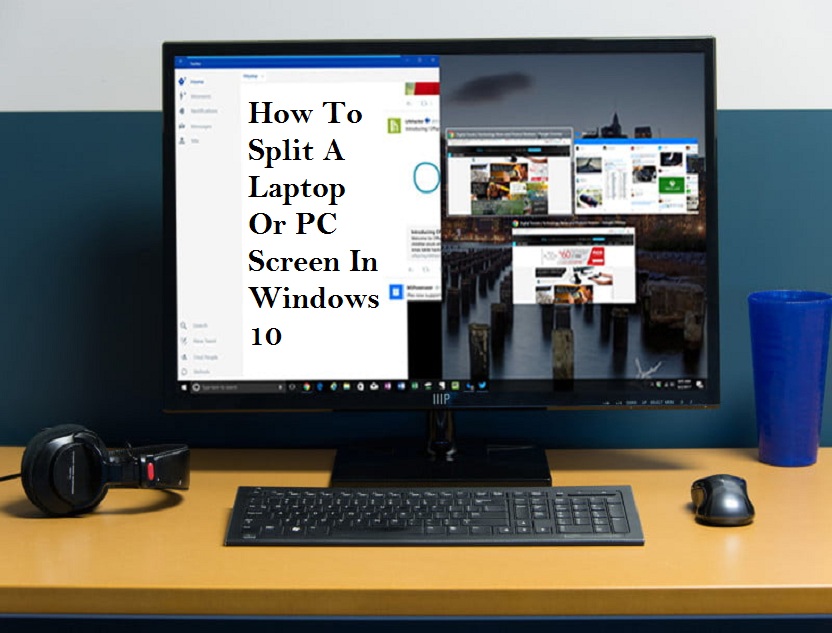
This guide will teach you how to split a Windows 10 laptop or PC screen to manage several tasks efficiently. The newer version of Windows 10 provides different ways for splitting the screen into more than one window with a higher-resolution. Let’s see the ways to split a screen in Windows 10. 

Use Snap Assist

Snap Assist is an excellent tool provided by Windows 10 for splitting screens. Follow the below steps to take advantage of it. 

 Select a window that you have to snap to one half of the display and take the window to the edge by dragging. 

 You will see a translucent outline that will help your snap. Go through it to snap the window. 

 The alternate way to snap the selected window is to tap and hold the Windows key and the Left or Right Arrow key. 

 If different windows or apps have opened and you are snapping a separate window, you will have many options to fill out the second half. Hit the one, and it gets snapped automatically at the opposite to the first window. If the selection grid vanishes, stretch the second window to the edge. 

 If you want to alter the size of the two windows, take the mouse pointer near the divider to see two arrows. Right-click and hold, and stretch the divider to resize the windows based on your needs. You can make a window narrow in a limited way. 

Use the keyboard shortcut
Using a keyboard shortcut, you can easily split the screen. Open a window and use the Windows key and Left or Right Arrow key to split the active window. 

How to snap more than two windows
If you use a large display, you have an opportunity to split it up to four windows through Corner Snap. Here is how to do it.

 Take the first window into a corner through drag and drop.

If you want to use the keyboard shortcut, use the Windows key and Left or Right Arrow key to snap the window to left or right. And use the Up or Down Arrow key to snap the window to the top or bottom. 

 Take the first open window in a corner, and then you have to drag and drop the second window to any available corner.

 Do the above step for other available corners. 

Customizing grids with a third-party app

Different third-party apps are available for more customization. These apps allow you to do grid-like changes to windows, providing you many useful tools with the right size. So, we recommend you to go with AquaSnap that is loaded with huge features. With this app, you can create many split screens according to your need, just with an easy-to-use snap function that works similar to Windows 10. You can also snap small windows to make one. The free version of this app allows you to do basic activities, including snapping, docking, stretching, using many keyboard shortcuts, and more.

Wilder Zayn  is a self-professed security expert; he has been making the people aware of the security threats. His passion is to write about Cyber security,cryptography, malware, social engineering, internet and new media. He writes  norton.com/setup  security products.

Source: How To Split A Laptop Or PC Screen In Windows 10


Saturday, 6 March 2021

The Best 9 Laptop Safety Tips

 A laptop is an important portable device that allows you to stay connected to the world anywhere and anytime. It helps you in performing various personal and professional activities.But you can take advantage of it if you are able to keep it safe. Without knowing how to use it safely, you may put the life of your laptop at risk.

Therefore, we are here with some essential safety tips for your laptop. You must add these tips as a weekly laptop maintenance routine if you want to eliminate some potential issues on your laptop in the future. You can try these safety tips anywhere. 

  • Shut it down

Don’t forget to shut down your laptop if it is not in use. You can save your laptop from overheating if you shut it down during your spare time. In that way, you allow your laptop to take a rest that can eliminate many risks in the long run. 

  • Adjust power settings 

If you want to save your laptop safe from heating, you should adjust its power settings. Adjusting power also helps when you don’t use your laptop, even if for a shorter duration. Prepare the hard drive and screen to shut off automatically after a specific time. You can also use standby or hibernate mode.

  • Ensure before packing it up 

After getting your work done, check and make sure that your laptop is turned off while packing it into the bag. If you pack it without shutting down, it can overheat. A laptop overheats in a bag because of an enclosed area. 

  • Vent maintenance

In weekly maintenance of your laptop, you also have to clean the air vents. You can take the help of the forced air dusters to keep your laptop’s air vents free from dust. Don’t push anything inside the air vents.

  • Check the fan

If your laptop’s fan stops working properly, it can cause overheating. Remember to check the manufacturer’s online support and warranty period. You may also find software to check the laptop fan. 

  • BIOS updates 

There are many laptops that control the fans using the BIOS. You can go online through your laptop manufacturer to know about your BIOS updates. If you don’t know how to update BIOS on your own, you can take the help of someone professional or a computer technician. 

  • Avoid lap burn

You should avoid using your laptop holding in your lap as it can cause lap burn. Instead, use a proper laptop desk or cooler to prevent lap burn. A laptop desk provides adequate vents for air circulation between the user and the laptop. 

  • Soft spots

Don’t use a soft material between your laptop and you. An ideal way to use a laptop is to put it on a hard surface that enables ventilation. If you use a soft material, it can prevent airflow by blocking the vents, causing overheat. If you can’t avoid a soft material or surface, add a heat sink base for the purpose of maintaining cooling.  

  • Unplug accessories

Disconnect all connected accessories from your laptop if it is not in use, even for a short duration. The plugged accessories are responsible for getting power and causing the laptop to overheat. Plugged accessories can also damage your laptop when you pack it into a bag or carrying case. 

Wilder Zayn  is a self-professed security expert; he has been making the people aware of the security threats. His passion is to write about Cyber security, cryptography, malware,social engineering, internet and new media. He writes norton.com/setup security products.

Source: https://smnorton.com/the-best-9-laptop-safety-tips/


How to Use Time to Walk Feature in Apple Fitness Plus?

Apple use to add several new services and apps to its health and fitness device that is Apple Watch. The company has recently introduced an ...