Showing posts with label Install. Show all posts

Wednesday, 14 April 2021

How to Install Third-Party Shortcuts on iPad and iPhone

The default Shortcuts app on iPad and iPhone is designed to perform several tasks at once automatically with just a single command. Users can pick default shortcuts or create their own shortcuts using Shortcuts app. People who want to use shortcuts, but don’t want to get bothered by creating one, so they obviously choose default shortcuts to perform tasks. However, custom shortcuts are different and can perform additional tasks.
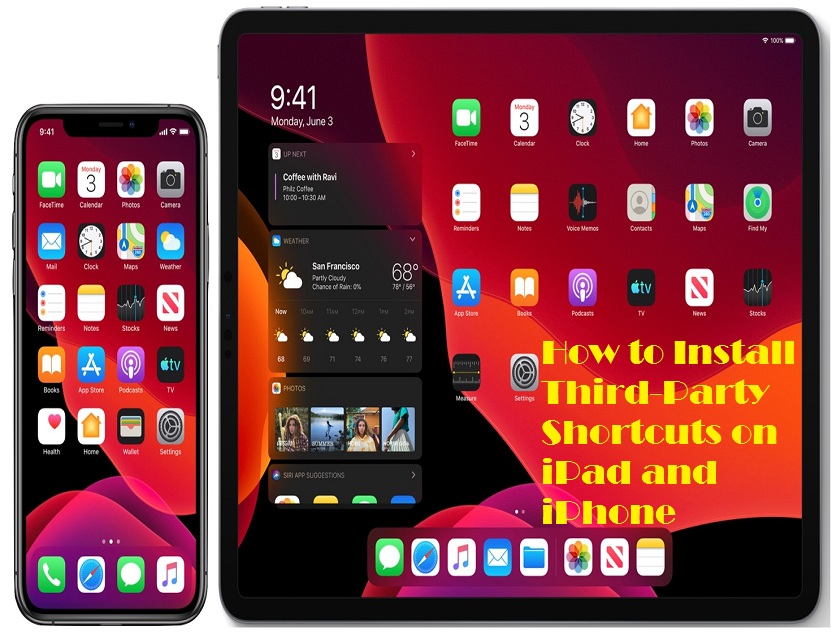
Shortcuts app on iPad and iPhone was useful from the beginning but now after the launch of iPadOS 14 and iOS 14, it can be easily accessed. The custom shortcuts feature has opened infinite ways for users, and as a result, now the Shortcuts app can do a lot of tasks. Users can find custom shortcuts that are created by other users. If the user doesn’t find enough shortcuts in the app, they are also allowed to install a third-party custom shortcuts app on iPad and iPhone app. So if anyone is interested in using third-party apps, here’s what they have to do.

How to Allow Third-Party/Untrusted Shortcuts on iPad and iPhone

iPad and iPhone will not allow users to install third apps for shortcuts, but users can in through settings. So let’s get started:

  • Open Settings.
  • Slide down to the bottom and press Shortcuts to proceed further.
  • In the Shortcuts section, toggle on Allow Untrusted Shortcuts option.
  • Now tap Allow.
  • After pressing the Allow button, users might need to type the device password.
  • Now download a third-party app or visit shortcutsgallery.com to get plenty of shortcuts for both iPad and iPhone devices.
  • On the website, choose a shortcut first.
  • Click Get Shortcut and start its installation process.
  • After this step, the shortcut will ask to open in the Shortcuts app and will display all its actions.
  • Scroll to the bottom and find the Add Untrusted Shortcuts option.
  • Press the Add Untrusted Shortcuts to allow this following shortcut to perform tasks on the device.
  • After allowing this shortcut, it will appear in My Shortcut tab of the Shortcuts app.

In the same way, users can install many more shortcuts and add them to their shortcuts gallery. There are plenty of apps and websites that provide useful shortcuts for iPad and iPhone users.

Apart from all these things, there’s an important thing that every user must be aware of is that Apple does not review these third-party shortcuts. So if any user is allowing third-party shortcuts to run on their device, they’re doing it at their own risk. So unless the source of the third-part shortcut is trustworthy, users shouldn’t do anything.

It is true that with help of third party shortcuts users can have a wide variety of custom shortcuts. People who don’t have time to learn the creating procedure or to create custom shortcuts, they can rely on suggestions and third-party shortcuts.

After the launch of iOS 14 and iPadOS 14, Shortcuts app received a folder feature which allows the user to save the shortcuts category wise. People who have a lot of shortcuts in their device folder feature can help them to manage shortcuts properly.

Conclusion 

Installing custom third-party shortcuts on iPad and iPhone devices is pretty simple. The only drawback of third-party shortcuts is its privacy. People who don’t want to use any untrusted app or shortcuts, they should only try out the recommended shortcuts of Shortcuts app.

Wilder Zayn  is a self-professed security expert; he has been making the people aware of the security threats. His passion is to write about Cyber security,cryptography, malware, social engineering, internet and new media. He writes norton.com/setup  security products.

Source: https://secure-blogs.com/how-to-install-third-party-shortcuts-on-ipad-and-iphone/

Wednesday, 24 February 2021

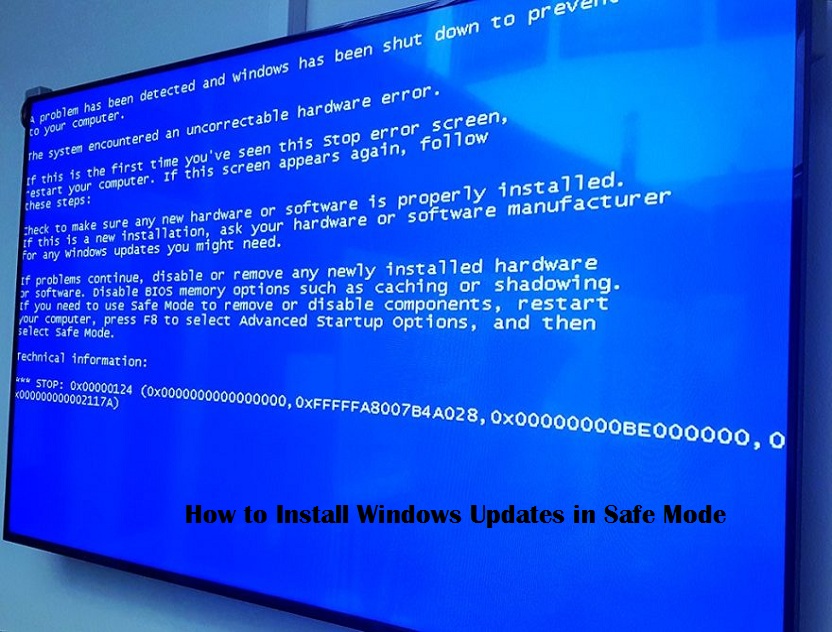
How to Install Windows Updates in Safe Mode

In this article, we have discussed the ways using which you can install Windows Update using the Safe Mode.

Safe Mode is also termed as the diagnostic mode of Windows. It runs only when the system is equipped with essential programs. You can use Safe Mode for updating your Windows 10 PC, if and only if your PC is not restarting normally. Installing updates in Safe Mode when your PC is getting restarted normally will lead to the installation of only a limited number of components. If you have succeeded in starting your PC normally, it is recommended to reinstall the service packs and updates.

Safe Mode is intended to be used when the user is facing an issue with his system. Being the diagnostic mode of Windows, Safe Mode allows essential system programs and services to start up at the boot time of the PC.

Windows usually scans what system and device components are enabled so as to recommend what kind of updates need to be installed. So, it would not be optimal to update Windows 10 using the Safe Mode unless you are facing issues with the normal boot-up of your Windows 10 PC.

Only a fraction of updates will get installed on your Windows 10 PC, as several components and devices are not active in Safe Mode. This will eventually lead to intermittent file or registry errors when the PC boots up normally. The features and services running in the background will not get activated by default due to this reason.

The only acceptable situation to install Windows updates in Safe Mode is that your PC is not starting normally. And even if you have installed the updates in Safe Mode, it is recommended that you reinstall them as soon as your Windows 10 PC starts normally.

Installing Windows Updates in Safe Mode

To install the Windows Update in Safe Mode, you need to follow the steps mentioned below:

  1. Tap on the Windows button.
  2. Further, press the Power button.
  3. Long press the Shift key and tap on Restart.
  4. Head over to the Troubleshoot options.
  5. Further, go to the Advanced Settings.
  6. Select Start-up Settings.
  7. Now press Restart.
  8. Then, tap 5 on your keyboard and select Safe Mode with Networking and tap on Enter.
  9. Now, open the Start Menu and enter the title Windows Update in the search bar.
  10. Now tap the Windows Update icon and head over to the left side screen.
  11. Further, tap on Change Settings and select Install Updates Automatically.
  12. Now, you need to check for the latest updates by clicking on the option “Check for Updates.”
  13. Further, tap on the option View Available Updates, and all the latest updates will appear on your screen accordingly.
  14. You need to opt for the required updates and further press Install.
  15. Once the installation is finished, tap on Reboot so that your PC can restart with the updated settings.
  16. Now, you need to click on the “Reinstall the updates” option to boot your system in the normal mode.

So, these were the steps using which you can get access to the latest Windows updates, even when you boot your system using theSafe Mode. This procedure is not intended for normal use; however, there might arise some exceptions where you would have to make use of this method.

Wilder Zayn  is a self-professed security expert; he has been making the people aware of the security threats. His passion is to write about Cyber security,cryptography, malware, social engineering, internet and new media. He writes norton.com/setup security products.

Source: How to Install Windows Updates in Safe Mode

How to Use Time to Walk Feature in Apple Fitness Plus?

Apple use to add several new services and apps to its health and fitness device that is Apple Watch. The company has recently introduced an ...