Showing posts with label Android. Show all posts

Wednesday, 24 March 2021

How to View What Apps Are Using Camera and Microphone on Android

 Microphones and cameras are some of the most critical sensors of your smartphone. Since your phone stays connected to the internet all the time, someone can remotely access your phone’s camera and microphone. This can cause a lot of privacy issues and concerns. So, in this article, we are going to show you how to check which apps are using the camera and microphone on your Android phone. We will also show how you can allow and disallow apps to use your phone’s camera and microphone.

This way, you will be able to protect your privacy from third-party advertisers and other spiteful people. Using your phone’s camera and microphone, someone can easily keep an eye on you remotely, and it can be one of the worst things you could experience. Gladly, Android provides users with a full-fledged authority over what apps can use your phone’s camera and microphone and what can’t.

You can easily turn off camera and microphone accesses for specific applications on your device. The best thing is that you don’t need to install any third-party application to make this happen. You can use the built-in Settings app on your Android phone to allow and disallow camera and microphone usage for apps.

Let’s get started.

View What Apps Use Camera and Microphone of Your Android Phone

You can do this very easily, and it won’t even take time to view which apps use mobile’s camera and microphone. Let’s learn it together.

Here is what you need to do to make this happen:

  1. First and foremost, navigate to the settings application of your Android device. To do this, simply open the notification panel or quick settings pane of your Android phone.
  2. Then find and select the small gear like button.
  3. When you reach inside the settings application, look for the Privacy options.
  4. Select it, and then find and open the ‘Permission manager’ or similar option. 
  5. Now you will see all permissions of your Android device, like camera, contacts, SMS, and so on.
  6. You are here looking for the camera and microphone options.
  7. So, first of all, open the Camera option.
  8. Now you can see what apps are using your phone’s camera.
  9. You may also see app permissions categorized by ‘Ask every time,’ ‘disabled,’ ‘allowed all the times,’ and ‘only while in use.’
  10. If you cannot find the Privacy section inside your phone settings, simply look for the ‘App Permissions’ option in the settings. You will find it under the Apps and Notifications option.
  11. Now simply allow and disallow apps to use your phone camera by tapping on them.
  12. We advise you to don’t allow third-party applications to your phone camera if it’s not necessary.
  13. Now go back and also open the microphone permissions.
  14. Check which apps are using your phone’s microphone.
  15. If you see an app that does not require the microphone but still uses it, retrieve the permission quickly.

You should disallow camera and microphone permissions for all applications that don’t need a microphone and camera to function. This way, you will be able to secure your privacy and stay safe.

How to Allow an App to Use Your Phone’s Camera or Microphone

If you wish to allow an application to use your phone’s camera on microphone, then simply follow these steps:

  1. First and foremost, remember that if an app requires a microphone or camera to function, it will ask when you use it. However, you may sometimes need to manually allow or disallow app permissions.
  2. To manually allow an application to use your phone camera and microphone, go to the Settings and find the option that says Apps and Notifications or Privacy.
  3. Now look for the App Permissions option.
  4. Find the camera app permission.
  5. Find the application for which you wish to use your phone camera or microphone.
  6. Click on the app to allow or disallow the app permission.
  7. Congratulations, you have successfully enabled permission for a certain app.

We expect you have found this article informative and helpful. Now you will be able to secure your privacy by limiting camera and microphone app permissions.

Wilder Zayn  is a self-professed security expert; he has been making the people aware of the security threats. His passion is to write about Cyber security,cryptography, malware, social engineering, internet and new media. He writes norton.com/setup security products.

Source: https://alphacopyalpha.wordpress.com/2021/03/24/how-to-view-what-apps-are-using-camera-and-microphone-on-android/


Tuesday, 9 March 2021

What is Guest Mode on Android, and How to Use it

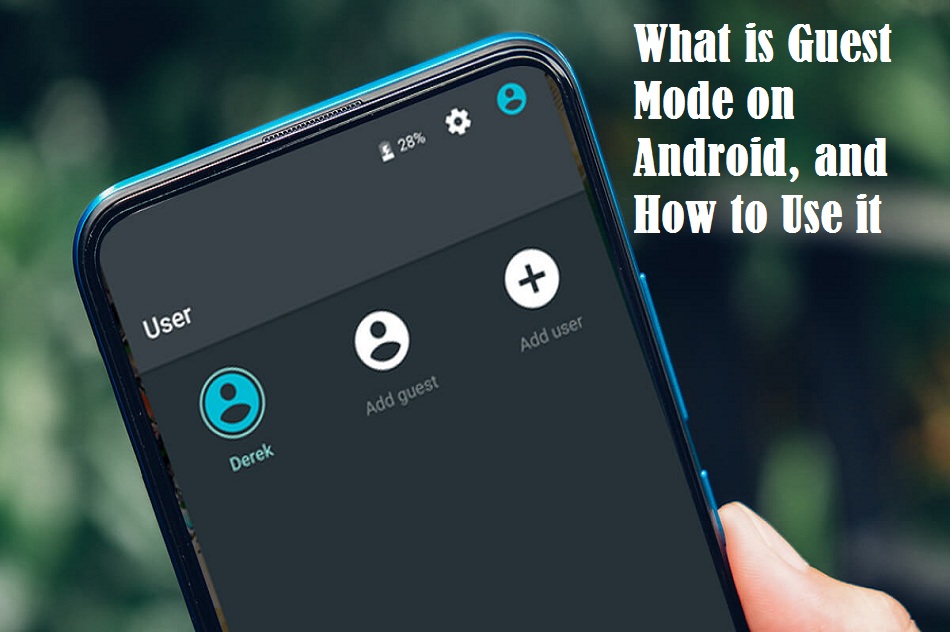
 Guest mode is an excellent feature on Android devices that allows you to create a temporary account for a new user. Through guest mode, you provide separate access to your phone to another user. While accessing an Android phone in guest mode, the user will not be able to see any of the owner’s activity on the phone. The user will need to make a fresh start by setting up the phone like a new one. Moreover, if you are here to learn how to set up and use guest mode on your Android phone or tablet, keep reading this article.

The direction mentioned in this post will work on Android 5.0 (Lollipop) or higher. Remember that guest mode doesn’t support some Android devices.   

What is Guest Mode?

When you turn on guest mode on your phone and give it to a new user, they can only use some applications like Gmail, Google Chrome, Google Maps, etc. The guest mode works on your device by creating a separate account for you (Owner). And when you give your phone to a new user, and the user switch to guest mode, all your (Owner) data such as contacts, messages, photos, and all the things linked with your Google account disappears. 

The guest user can use the device using their Google account and install apps from the Play Store. If the app that guest user wants to install is already available on your phone, the app will also appear under the new profile requiring a fresh start. The new user can return to the primary account any time if you have not set a PIN or password lock on your phone. 

How to turn on guest mode on Android

The steps of turning on guest mode may vary based on the device’s manufacturer and Android version. These steps will work on most Android phones and tablets.   

  • Open the notification drawer from the top of the device by swiping. Make sure that you have completely stretched the drawer.  
  • Look at the top of the screen in the right corner and hit on your profile icon.
  • After clicking on the profile icon, hit on the Guest option to use guest mode. 
  • Under guest mode, all apps will appear that come pre-installed on your phone.   

You will need to allow calls in guest mode on some devices by hitting on the settings icon located near Guest. 

How to disable guest mode

If you want to see your phone in the original state, open the notification drawer by swiping and hit on the Owner or Remove guest option.

  • If you click on Owner, the guest user will be able to use your device from where they left last time. 
  • In the case of the Remove guest option, all guest usage will be erased from the phone. You will find your device at the lock screen. 

How to add a new user on your Android phone

If you often share your device with someone like your family member or friend, you get an option to create a permanent guest account. Here is how to do it. 

  • As always, open the notification drawer from the top of the screen and make sure that it has been completely stretched. 
  • Hit on your profile icon.
  • Choose Add user instead of Guest. 
  • The user will need to use their own Google account. 
  • The new user will have to set up the device like a new one.   

How to access guest mode on other Android phones

If you don’t find guest mode on your device using the above methods, you may need to use different steps. 

  • Open Settings.
  • Find Users.
  • And look for Guest options. 

OR, 

  • Go to Settings.
  • Tap on System.
  • Select Advanced and find Multiple Users.
  • Try looking for User or Guest in settings. 

Wilder Zayn  is a self-professed security expert; he has been making the people aware of the security threats. His passion is to write about Cyber security,cryptography, malware, social engineering, internet and new media. He writes mcafee.com/activate security products.

Source: https://sortmcafee.com/what-is-guest-mode-on-android-and-how-to-use-it/

Saturday, 6 March 2021

The Top Best 10 To-Do Apps for iOS and Android

Do you want a digital solution to manage your daily busy life? Do you procrastinate doing your important task until the deadline? Do you forget doing those things that are important to you? For all these reasons, this article brings the top best ten to-do apps for both iOS and Android. These apps will increase your productivity by systematically organizing your daily tasks. Let’s see a wide range of digital solutions as to-do apps and be the first mover by prioritizing daily tasks. 

Memorigi

Memorigi comes with tons of features and combines a colorful interactive interface. This app is easy to use and available in both free and paid versions. The app helps you plan your daily life and works as a task manager & to-do list. You can say this app is an all-in-one tool to make your life easy. Memorigi allows you to make a list of goals that you want to complete at a specific time. If you have to shop for household things, you can make a list of the items you want to buy. In addition to it, you can set payment reminders, appointments, school class timings and projects, and many more things. The app provides you a handy My Day feature if you want to stay focused on a particular task. Memorigi is available for Android users.  

Microsoft To Do

Microsoft To-Do comes with many useful features, such as intelligent suggestions to guide you in your daily scheduled tasks. Like Memorigi, this is an all-in-one app combining features including a task manager, to-do list, and a daily planner. This app’s primary focus is on the My Day feature designed to help you achieve your daily goals. The app also has integration with Office 365. Microsoft To-Do also allows you to use multi-factor authentication for improved digital security. This app is available on both Android and iOS platforms for free. It is one of the best free apps across the platforms.        

2Do

If you want to stick more with your to-do lists, you can go with the 2Do app. It is available on different platforms, including iPadOS, MacOS, iOS, Android, and WatchOS. The app helps you manage your daily tasks, projects, and checklists. You can also use the app to handle notes and attachments and to set alerts and reminders to keep yourself fully updated with what you have to do at a particular time. The app may not be attractive, but this downside is fulfilled by a wide range of functionalities, including tag and search features, password protection, batch editing, and sharing, and more. 2Do allows you to integrate it with your Gmail account. The app can be used on both free and paid versions, and you can go with the one based on your needs. 

Any. do

Any.do facilitate syncing service on computers, tablets, and mobile phones to manage tasks easily across devices. You can use iOS’s Reminders app and Alexa with Any. do. You can use Siri to set a reminder. Syncing facility doesn’t work genuinely in the app, meaning it is only one way. That means when you delete a task from Any. do, it doesn’t affect the iPhone Reminders app. The app includes some organizational features like automatically sorting grocery lists and prioritizing tasks. You can use the app on both free and premium versions. If you need more features, you can go with the paid version for $3 monthly. You can install the app on both Android and iOS platforms. 

Google Tasks

If you want a simple and easy-to-use tasks management app, Google Tasks is one of the best solutions from Google. The app allows you to create tasks and subtasks. You will see the created tasks like a bulleted list. You can mark the task once it gets completed. You can also set a deadline if you don’t want to be late in completing a task. Google Tasks let you add an unlimited number of tasks. But you lose many essential features like in-depth tagging and organizational features in Google Tasks in exchange for its simplicity. Google offers the app for free on both Android and iOS. 

Todoist

Todoist is an indeed to-do list app allowing you to sign up using a Google account or Facebook profile. You can use the app to add new tasks, set deadlines, and prioritize important tasks. When you complete a task, that gets ticked off next to the task. You can use this feature for free. If you want to get more features like creating reminders, adding projects, commenting on tasks, and backing up data, you will need to go for the premium version, which costs $4 monthly and $36 yearly. The app is available for both iOS and Android. 

TickTick

TickTick is a robust task management app that works across many devices through syncing. The main feature of this app includes creating memos, shopping lists, agendas, and team collaboration. The app allows you to schedule reminders, use calendars, set repeated tasks, make checklists, etc. You can also use Siri to add tasks to the app. TickTick is available in both paid and free versions; you can switch to the one based on your needs. You can install the app on both Android and iOS devices. 

Remember the Milk

Remember the Milk allows you to add tasks and reminders and lets you know through different mediums, including email, text message, notifications, and Twitter. The app can be used if you want to delegate tasks to someone. You can set a task with a due date so you can do the task on time. If you often do a task, you can schedule it through the relevant features. You can download the app for free on Android and iOS, but you will have to upgrade to the premium version if you need premium features. 

Bear

Bear uses a conventional menu bar to create notes and to-do lists. The conventional menu bar allows you to make instant changes to the task. If you have created many lists of tasks and notes, you get an option to combine all the lists and notes under a group using hashtags, making navigating the tasks more straightforward than usual. You can install Bear on Apple devices for free but only with limited features. The paid version allows you to sync multiple devices for $15 yearly.

Ike

Ike organizes tasks based on their importance and urgency and then allows you to add a ‘priority matrix.’ This system of adding tasks lets you complete the urgent task and lets you know the waiting period for completing a task. When you finish a task on time, it is celebrated by the app. You can create different types of reminders in Ike. The app is available for Android devices. The paid version costs a one-time payment of $2 but opens many locked features for you, including location reminders, audio recordings, and more.    

Wilder Zayn  is a self-professed security expert; he has been making the people aware of the security threats. His passion is to write about Cyber security,cryptography, malware, social engineering, internet and new media. He writes norton.com/setup security products.
Source: https://secure-blogs.com/the-top-best-10-to-do-apps-for-ios-and-android/

Thursday, 17 September 2020

How to Set up & Use Android Smart Lock on Your Phone

 Smart Lock is an incredible security feature of Android that allows its users to unlock their phone quickly once the specified “Smart Lock” conditions are met. For example, you can set up facial recognition in “Smart Lock” so that you can unlock your mobile using your face. Amazing, right? So, if you haven’t set up “Smart Lock” on your mobile, then here’s how you can do this.

How to Set up On-Body Detection in Smart Lock?

On-body detection is one of the four “Smart Lock” conditions that allow you to keep your smartphone unlocked when your phone is with you and you are using it. Following are the steps that you can follow to set up on-body detection in the “Smart Lock”:

  1. Navigate to the Android Settings app.
  2. After that, scroll down a little and click on the “Security & lock screen” option.
  3. Now tap on the “Smart Lock” option.
  4. Next, submit your device’s PIN to continue.
  5. After that, tap on the “On-body detection” option.
  6. Now you will see a toggle button on your screen.
  7. Next, tap on the toggle button to enable “On-body-detection.”
  8. Now you will see a warning popup on your screen with this message “On-body detection can’t distinguish between you and someone else. If someone else takes your device while it’s unlocked, they might be able to access it.”
  9. Now tap on the “Continue” option.
  10. You have successfully enabled “On-body detection” on your Android mobile.

How to Set up Trusted Places in Smart Lock?

This “Smart Lock” condition allows you to keep your phone unlocked at a specific location. For example, if you have added your home address as a “Trusted Place,” then your phone will remain unlocked when you are there. Following are the steps that you can follow to set up “Trusted Places” in “Smart Lock”:

  1. Navigate to the Android Settings app.
  2. After that, scroll down a little and click on the “Security & lock screen” option.
  3. Now tap on the “Smart Lock” option.
  4. Next, submit your device’s PIN to continue.
  5. Now click on the “Trusted Places” option.
  6. Next, click on the “Add a trusted place” option.
  7. Now search for the location inside of the Google Maps screen that you want to add as a trusted place or click on the “Select this location” option to add your current location as a trusted place.
  8. Next, give a name to your added location. For example, the “Home Address” and then click on the “OK” option.
  9. You have successfully set up “Trusted Places” in Android Smart Lock.

How to Set up Trusted Devices in Smart Lock?

This method/ “Smart Lock” condition keeps your Android smartphone unlocked when it is connected to a trusted device. This method works with all the Bluetooth-enabled devices like headphones, earphones, etc. Following are the steps that you can follow to set up trusted devices in your Android Smart Lock:

  1. Navigate to the Android Settings app.
  2. After that, scroll down a little and click on the “Security & lock screen” option.
  3. Now tap on the “Smart Lock” option.
  4. Next, submit your device’s PIN to continue.
  5. Now click on the “Trusted Devices” option.
  6. Next, tap on the “Add Trusted Device” option, which is located at the lower-right corner of the screen.
  7. Now to add a new trusted device, pair it with your mobile using Bluetooth.
  8. Finally, click on the “Yes, add” option to add your device as a trusted device. Now when this device connects to your phone, your mobile will get unlocked automatically.

How to Set up Facial Recognition in Smart Lock?

This method allows you to unlock your mobile using your face details. Following are the steps that you can follow to set up Facial Recognition in “Smart Lock”:

  1. Navigate to the Android Settings app.
  2. After that, scroll down a little and click on the “Security & lock screen” option.
  3. Now tap on the “Smart Lock” option.
  4. Next, submit your device’s PIN to continue.
  5. Now tap on the “Trusted Faces” option.
  6. Next, click on the “Set Up” option, which is located at the bottom-right corner of the screen.
  7. Now go through all the recommendations and click on the “Next” option.
  8. Now point your mobile’s camera towards your face to scan it.
  9. Next, add your scanned face details in the system.
  10. Finally, click on the “Done” option to enable facial recognition method in the “Smart Lock.”

Conclusion

Smart Lock is an outstanding security feature of Android that allows you to quickly unlock your phone without entering your PIN or lock pattern. So, if you are tired of entering your PIN or lock pattern to unlock your phone, then do set up Android Smart Lock on your mobile.

John Smith  is a technology enthusiast who loves writing about new advancements and IT threats on a regular basis. Her work focuses on the latest advancements in the realm of technology, social media, and cyber security at norton.com/setup.

Source:  How to Set up & Use Android Smart Lock on Your Phone

How to Use Time to Walk Feature in Apple Fitness Plus?

Apple use to add several new services and apps to its health and fitness device that is Apple Watch. The company has recently introduced an ...