Showing posts with label Screen. Show all posts

Friday, 12 March 2021

How To Split A Laptop Or PC Screen In Windows 10

 Nowadays, many people use two monitors while using a computer to perform tasks more

efficiently. And the same thing you get when you use split-screen features on your PC. On
split-screen mode, your computer screen gets divided into two halves and makes you feel like you are using two different monitors simultaneously. 
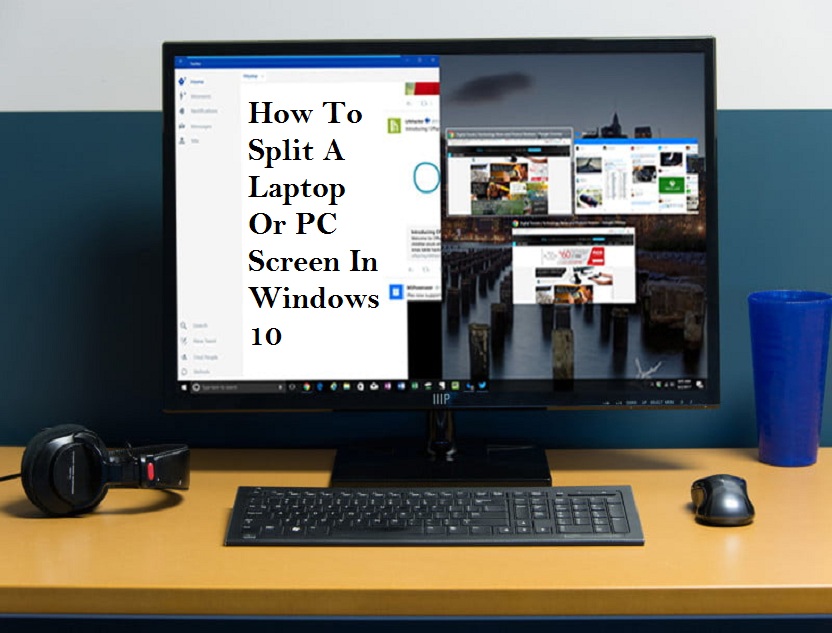
This guide will teach you how to split a Windows 10 laptop or PC screen to manage several tasks efficiently. The newer version of Windows 10 provides different ways for splitting the screen into more than one window with a higher-resolution. Let’s see the ways to split a screen in Windows 10. 

Use Snap Assist

Snap Assist is an excellent tool provided by Windows 10 for splitting screens. Follow the below steps to take advantage of it. 

 Select a window that you have to snap to one half of the display and take the window to the edge by dragging. 

 You will see a translucent outline that will help your snap. Go through it to snap the window. 

 The alternate way to snap the selected window is to tap and hold the Windows key and the Left or Right Arrow key. 

 If different windows or apps have opened and you are snapping a separate window, you will have many options to fill out the second half. Hit the one, and it gets snapped automatically at the opposite to the first window. If the selection grid vanishes, stretch the second window to the edge. 

 If you want to alter the size of the two windows, take the mouse pointer near the divider to see two arrows. Right-click and hold, and stretch the divider to resize the windows based on your needs. You can make a window narrow in a limited way. 

Use the keyboard shortcut
Using a keyboard shortcut, you can easily split the screen. Open a window and use the Windows key and Left or Right Arrow key to split the active window. 

How to snap more than two windows
If you use a large display, you have an opportunity to split it up to four windows through Corner Snap. Here is how to do it.

 Take the first window into a corner through drag and drop.

If you want to use the keyboard shortcut, use the Windows key and Left or Right Arrow key to snap the window to left or right. And use the Up or Down Arrow key to snap the window to the top or bottom. 

 Take the first open window in a corner, and then you have to drag and drop the second window to any available corner.

 Do the above step for other available corners. 

Customizing grids with a third-party app

Different third-party apps are available for more customization. These apps allow you to do grid-like changes to windows, providing you many useful tools with the right size. So, we recommend you to go with AquaSnap that is loaded with huge features. With this app, you can create many split screens according to your need, just with an easy-to-use snap function that works similar to Windows 10. You can also snap small windows to make one. The free version of this app allows you to do basic activities, including snapping, docking, stretching, using many keyboard shortcuts, and more.

Wilder Zayn  is a self-professed security expert; he has been making the people aware of the security threats. His passion is to write about Cyber security,cryptography, malware, social engineering, internet and new media. He writes  norton.com/setup  security products.

Source: How To Split A Laptop Or PC Screen In Windows 10


Tuesday, 15 December 2020

Full Screen not Working on YouTube? Here are the Fixes

At times, Windows 10 users may face an issue concerning the  Google Chrome Full Screen mode. This issue crops up when trying to play YouTube videos. A majority of the time, rebooting the web browser or device will fix the issue; and if not, here are a few solutions that you can apply.


Check Flash Player and Content Settings in Chrome

  1. Enter “chrome://settings/content” in the address bar of Google.
  2. Then choose the ‘Protected Content’ option.
  3. Don’t forget to mark both options.
  4. In case you have an outdated Chrome version, then input “chrome://plugins” into the box and hit the Enter button.
  5. Find the player entry containing “pepflashplayer.dll” and select the Disable option.
  6. Now, reboot Chrome.

Check Full-Screen API in Firefox

  1. Navigate to the address bar on Chrome.
  2. Then input “about:config” into it and select the OK button.
  3. You should browse for the entry “full-screen” through the address bar, and don’t forget to mark the ‘full-screen-api.enabled’ box.
  4. Once you have applied the changes, reboot the browser.

Use Incognito Mode and Try Removing Browser Data

  1. Firstly, hold the ‘Ctrl + N’ hotkeys simultaneously over the keyboard.
  2. Then reach YouTube and attempt opening any video in the full-screen. In case it shows the display properly, proceed with the further fixes.
  3. Now, in the tab, input “chrome://settings” and hit the Enter button.
  4. You should move to the end of the screen and choose the ‘Advanced settings’ option.
  5. After expanding the menu of Advanced, beneath the “Privacy and Security” section, select the “Clear browsing data” option.
  6. Then click on the ‘All-time’ and mark every box.
  7. Now, select the “Clear browsing data” option.
  8. Finally, reboot the system and attempt to open a YouTube video once again in full-screen.

Log Out of Google Profile

  1. At first, select the profile image over the upper right of the screen.
  2. After that, click on the ‘Syncing to’ button.
  3. Then select the ‘Turn off’ option for the user profile.
  4. After disabling the profile, select the ‘Manage other people’ option.
  5. You should choose the vertical ellipsis menu icon and choose the ‘Remove this person’ option.
  6. Now, reboot the system and attempt accessing YouTube in full-screen mode.

Reinstall the Google Chrome

  1. Press the Windows and R hotkeys altogether for launching the Run prompt.
  2. Then browse for Chrome and right-click on it.
  3. From the context menu, choose the Uninstall button.
  4. Finally, navigate to the official download site of Google and download the latest version of Chrome.
  5. Now, open the executable file and then install the browser once again.

Emily Johnson is a Microsoft product expert and has been working in the technology industry since 2002. As a technical expert, Emily has written technical blogs, manuals, white papers, and reviews for many websites such as office.com/setup.

Source: Full Screen not Working on YouTube

How to Use Time to Walk Feature in Apple Fitness Plus?

Apple use to add several new services and apps to its health and fitness device that is Apple Watch. The company has recently introduced an ...